Arduino - Mini Mp3 Player Module

This tutorial instructs you how to use Arduino with the DIYables Mini Mp3 Player module. In detail, we will learn:

Arduino Mini Mp3 Player

About Mini Mp3 Player Module

The DIYables Mini Mp3 Player module is a small, low-cost mp3 player module based on the YX5200-24SS chip. It reads mp3 files from a micro SD card and outputs audio through a built-in amplifier (max 3W speaker) or DAC output pins for an external amplifier.

The module communicates with Arduino via UART (serial) at 9600 baud. It supports:

  • Playing, pausing, resuming, and stopping tracks
  • Volume control (0 to 30)
  • 6 equalizer modes (Normal, Pop, Rock, Jazz, Classic, Bass)
  • Loop track, loop folder, loop all, shuffle
  • Playing tracks from numbered folders
  • Advertisement playback (interrupt and resume)
  • Status queries (current track, volume, playing state, etc.)

Module Pinout

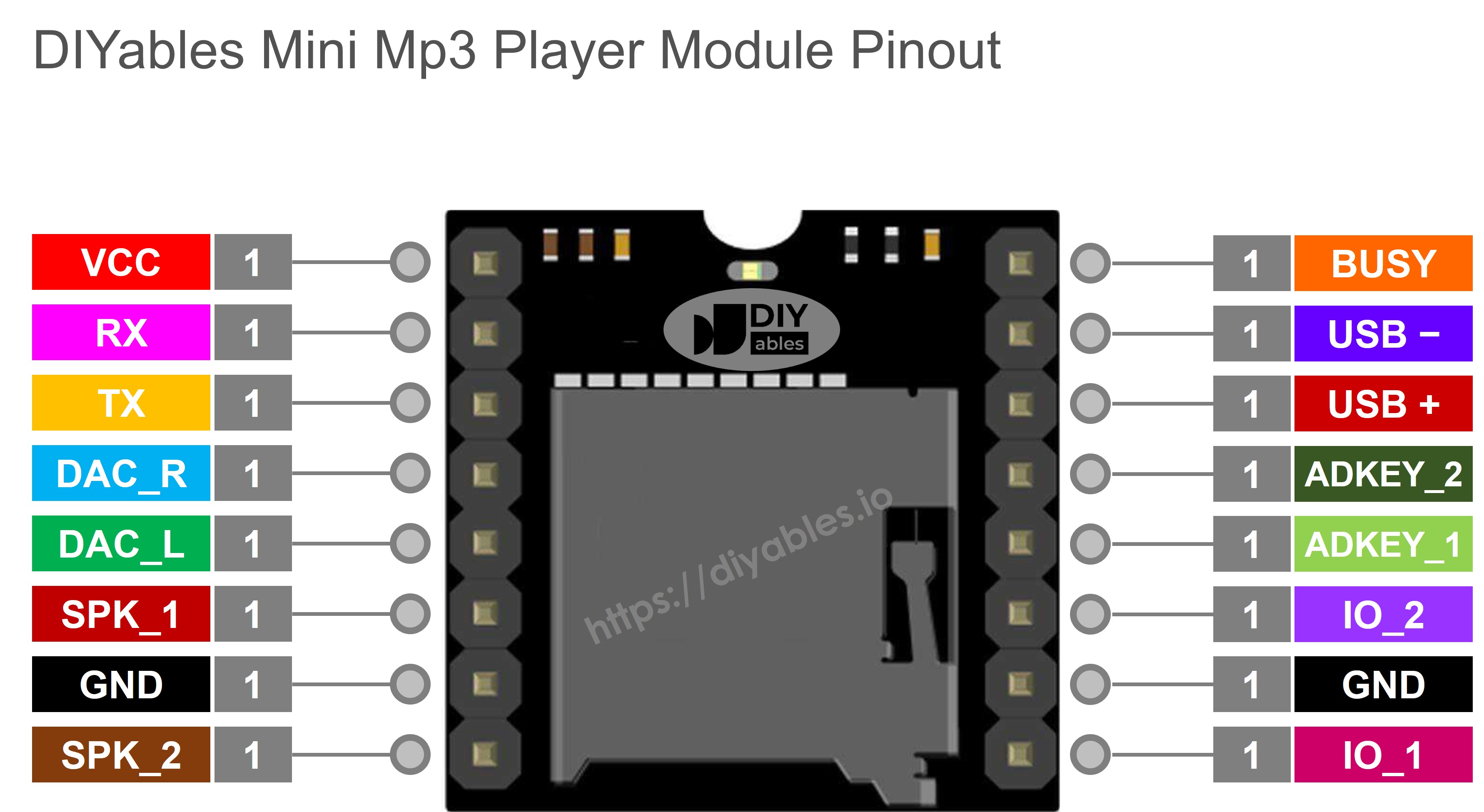
Pin Description
VCC Power supply (3.2V ~ 5.0V)
GND Ground
RX UART receive (connect to Arduino TX via 1K resistor)
TX UART transmit (connect to Arduino RX)
SPK_1 Speaker+ (direct speaker connection, max 3W)
SPK_2 Speaker- (direct speaker connection, max 3W)
DAC_R Right audio output (for external amplifier)
DAC_L Left audio output (for external amplifier)
BUSY Low when playing, high when idle (optional)
IO_1 Short press previous track, long press volume down
IO_2 Short press next track, long press volume up
Mini Mp3 Player Pinout

Wiring Diagram

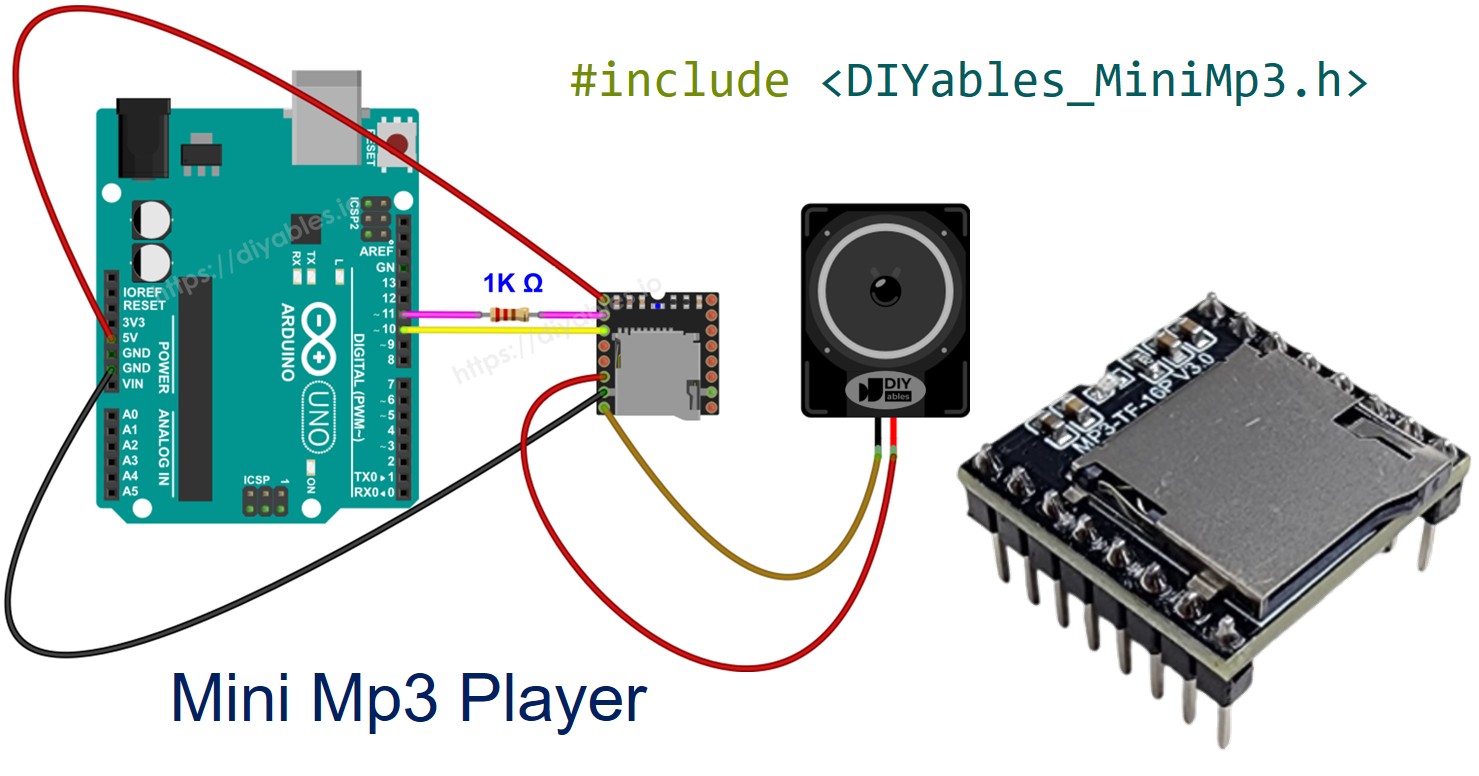
Connect the Mini Mp3 Player module to the Arduino Uno as follows:

Mini Mp3 Pin Arduino Pin Note
VCC 5V
GND GND
RX Pin 11 Must use a 1K resistor in series (module is 3.3V logic)
TX Pin 10
SPK_1 Speaker+ Direct speaker connection (max 3W)
SPK_2 Speaker- Direct speaker connection (max 3W)

Important: The 1K resistor on the RX pin is required when using 5V Arduino boards. It protects the module's 3.3V logic input. Without it, the module may not work or could be damaged.
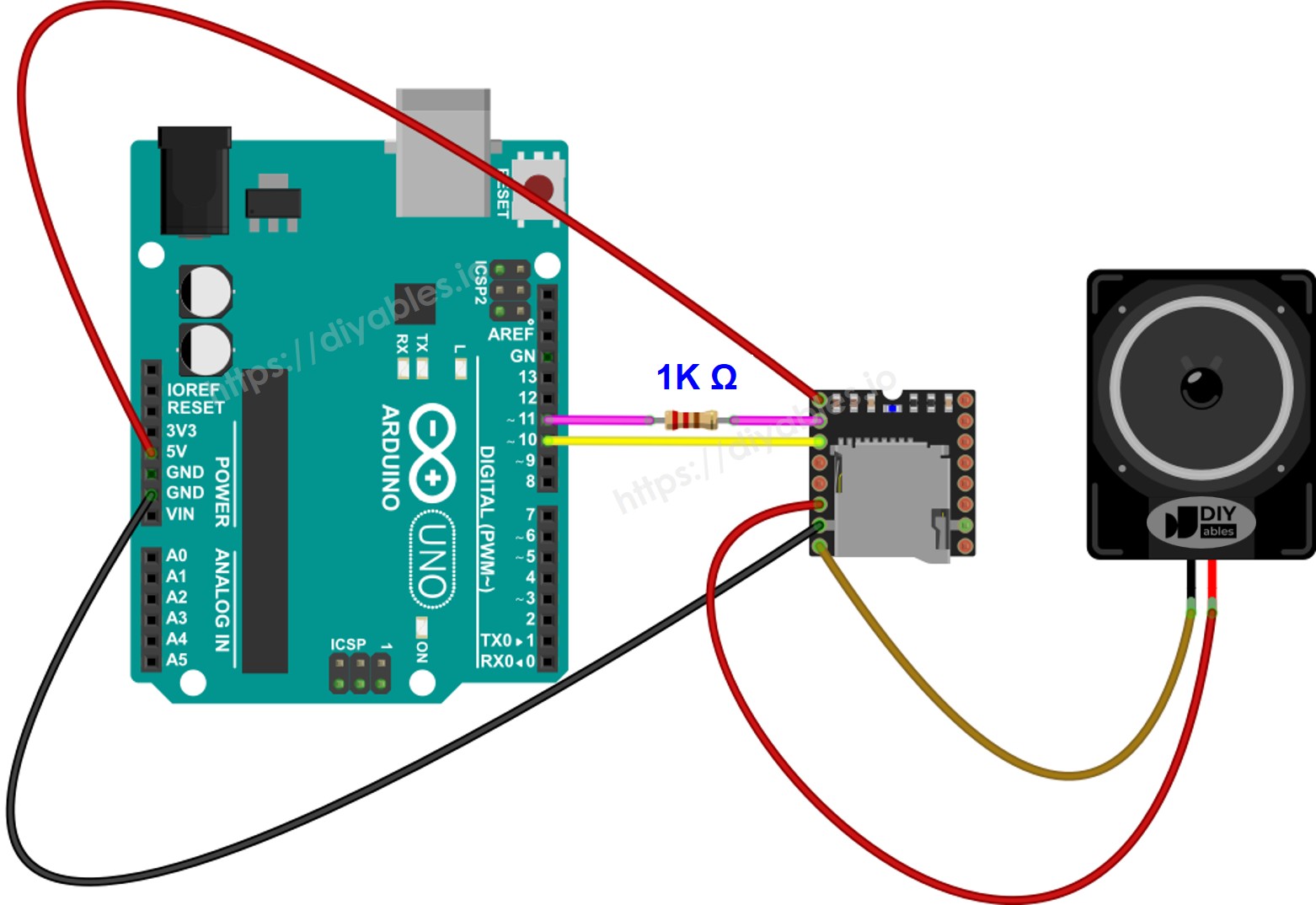
Arduino Mini Mp3 Player wiring diagram

This image is created using Fritzing. Click to enlarge image

SD Card Preparation

Format your micro SD card as FAT16 or FAT32 before use. Copy mp3 files to the root of the SD card with zero-padded numbers:

/001.mp3 /002.mp3 /003.mp3

Important: Track numbers start from 1 (not 0). The module assigns track numbers based on the order files were copied to the SD card, NOT by filename. Format the SD card first, then copy files one by one in order.

For folder playback, create numbered folders with numbered files:

/01/001.mp3 /01/002.mp3 /02/001.mp3

Folder names must be 2-digit zero-padded (01-99). Track names inside folders must be 3-digit zero-padded (001-255).

Library Installation

  • Connect the Arduino board to your computer with a USB cable.
  • Open Arduino IDE, select the right board and port.
  • Navigate to the Libraries icon on the left bar of the Arduino IDE.
  • Search "DIYables_MiniMp3", then find the DIYables_MiniMp3 library by DIYables.
  • Click Install button to install the latest version of the library.
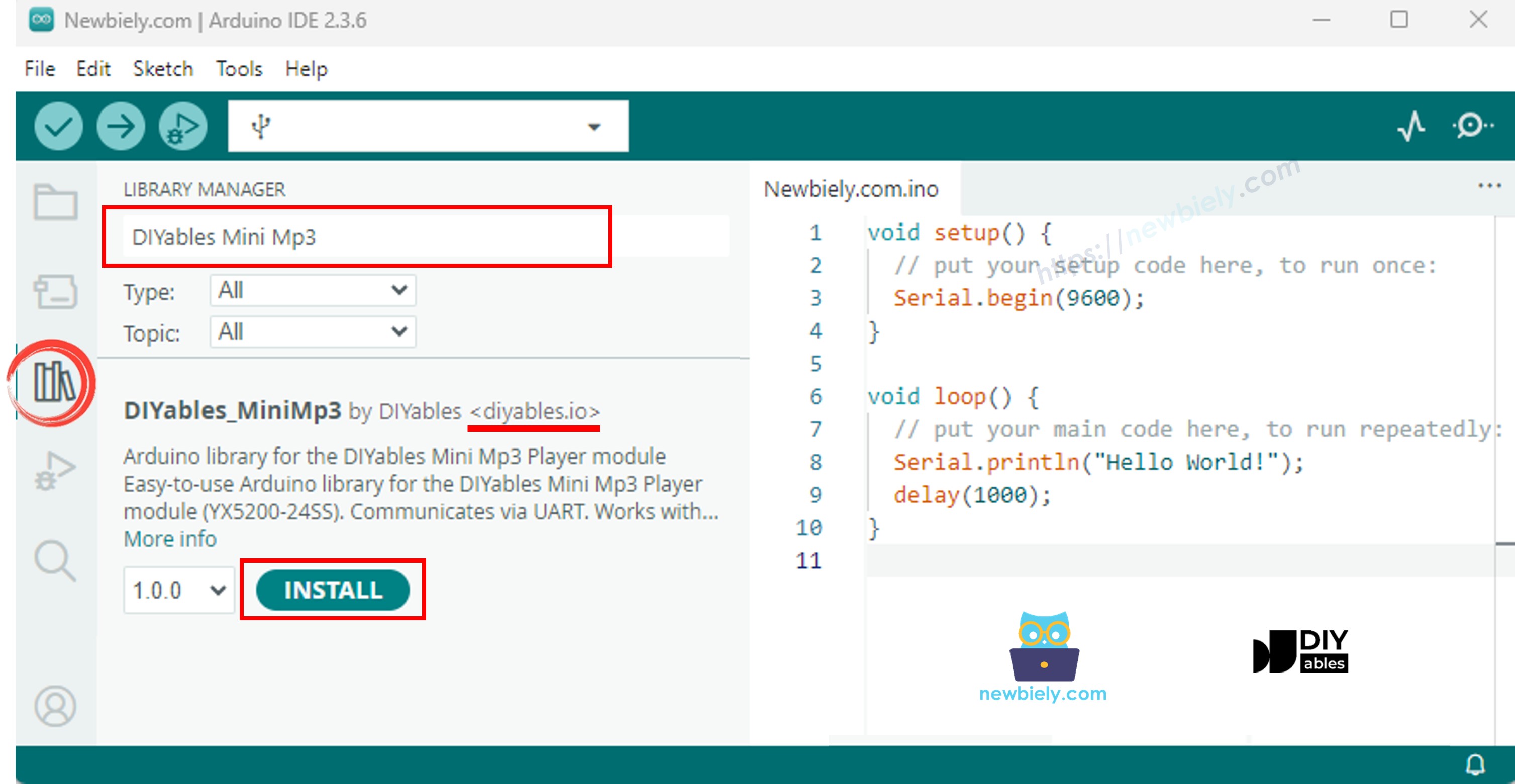
Arduino Mini Mp3 Player library

Note: This library is self-contained with no external dependencies.

Basic Structure

Every sketch using the Mini Mp3 Player follows this basic structure:

#include <DIYables_MiniMp3.h> #include <SoftwareSerial.h> SoftwareSerial mp3Serial(10, 11); // RX, TX DIYables_MiniMp3 mp3; void setup() { mp3Serial.begin(9600); mp3.begin(mp3Serial); delay(1000); // Wait for the module to initialize mp3.setVolume(25); // Set volume (0 to 30) } void loop() { // Your code here }

mp3.begin(mp3Serial) initializes the communication with the module. The delay(1000) gives the module time to boot up. You must set the volume before playing, as the default volume may be 0.

Arduino Code - Play a Track

The following code plays a single track from the SD card.

/* * DIYables Mini Mp3 Player - Play One Track * * Product: DIYables Mini Mp3 Player Module * https://diyables.io/products/mini-mp3-player-module * * Tested with: * - Arduino Uno R3 * - Arduino Uno R4 WiFi / R4 Minima * - Arduino Mega * - Arduino Due * - Arduino Giga * - DIYables STEM V3 https://diyables.io/stem-v3 * - DIYables STEM V4 IoT https://diyables.io/stem-v4-iot * - DIYables STEM V4B IoT https://diyables.io/stem-v4b-iot * - DIYables STEM V4 Edu https://diyables.io/stem-v4-edu * - DIYables MEGA2560 R3 https://diyables.io/atmega2560-board * - DIYables Nano R3 https://diyables.io/nano-board * - DIYables ESP32 Board https://diyables.io/esp32-board * - DIYables ESP32 S3 (Uno) https://diyables.io/esp32-s3-uno * - Expected to work with other Arduino-compatible boards * * Plays track 001 once, then stops. * * Wiring (Arduino Uno): * Mini Mp3 RX -> Arduino Pin 11 (via 1K resistor) * Mini Mp3 TX -> Arduino Pin 10 * Mini Mp3 VCC -> 5V * Mini Mp3 GND -> GND * Speaker connected to SPK_1 and SPK_2 pins * * SD Card: Put mp3 files in root, named 001.mp3, 002.mp3, etc. */ #include <DIYables_MiniMp3.h> #include <SoftwareSerial.h> SoftwareSerial mp3Serial(10, 11); // RX, TX DIYables_MiniMp3 mp3; void setup() { Serial.begin(9600); mp3Serial.begin(9600); mp3.begin(mp3Serial); delay(1000); // Wait for the module to initialize mp3.setVolume(25); // Set volume (0 to 30) Serial.println("Playing track 1..."); mp3.play(1); // Play track 001.mp3 } void loop() { // Nothing to do here }

Quick Steps

  • Prepare the SD card with mp3 files (001.mp3, 002.mp3, etc.).
  • Insert the SD card into the Mini Mp3 Player module.
  • Wire the module to the Arduino as shown in the wiring diagram.
  • Connect the Arduino board to your computer with a USB cable.
  • Open Arduino IDE, select the right board and port.
  • Copy the above code and paste it to the editor of Arduino IDE.
  • Click Upload button on Arduino IDE to upload code to Arduino.

You will hear track 001.mp3 play through the speaker.

Playback API Summary

Method Description Example
play(trackNum) Play a track by number mp3.play(1)
playNext() Play the next track mp3.playNext()
playPrevious() Play the previous track mp3.playPrevious()
pause() Pause playback mp3.pause()
resume() Resume playback mp3.resume()
stop() Stop playback mp3.stop()

Arduino Code - Play Multiple Tracks

The following code plays multiple tracks sequentially with a delay between each.

/* * DIYables Mini Mp3 Player - Play Multiple Tracks * * Product: DIYables Mini Mp3 Player Module * https://diyables.io/products/mini-mp3-player-module * * Tested with: * - Arduino Uno R3 * - Arduino Uno R4 WiFi / R4 Minima * - Arduino Mega * - Arduino Due * - Arduino Giga * - DIYables STEM V3 https://diyables.io/stem-v3 * - DIYables STEM V4 IoT https://diyables.io/stem-v4-iot * - DIYables STEM V4B IoT https://diyables.io/stem-v4b-iot * - DIYables STEM V4 Edu https://diyables.io/stem-v4-edu * - DIYables MEGA2560 R3 https://diyables.io/atmega2560-board * - DIYables Nano R3 https://diyables.io/nano-board * - DIYables ESP32 Board https://diyables.io/esp32-board * - DIYables ESP32 S3 (Uno) https://diyables.io/esp32-s3-uno * - Expected to work with other Arduino-compatible boards * * Plays tracks one after another with a delay between them. * * Wiring (Arduino Uno): * Mini Mp3 RX -> Arduino Pin 11 (via 1K resistor) * Mini Mp3 TX -> Arduino Pin 10 * Mini Mp3 VCC -> 5V * Mini Mp3 GND -> GND * Speaker connected to SPK_1 and SPK_2 pins * * SD Card: Put mp3 files in root, named 001.mp3, 002.mp3, 003.mp3 */ #include <DIYables_MiniMp3.h> #include <SoftwareSerial.h> SoftwareSerial mp3Serial(10, 11); // RX, TX DIYables_MiniMp3 mp3; int currentTrack = 1; int totalTracks = 3; // Change this to match your SD card unsigned long lastTrackTime = 0; unsigned long trackDuration = 5000; // Wait 5 seconds between tracks (adjust as needed) void setup() { Serial.begin(9600); mp3Serial.begin(9600); mp3.begin(mp3Serial); delay(1000); mp3.setVolume(20); Serial.println("Playing track 1..."); mp3.play(currentTrack); lastTrackTime = millis(); } void loop() { // After trackDuration, play the next track if (millis() - lastTrackTime >= trackDuration) { currentTrack++; if (currentTrack > totalTracks) currentTrack = 1; // Loop back to first track Serial.print("Playing track "); Serial.println(currentTrack); mp3.play(currentTrack); lastTrackTime = millis(); } }

Quick Steps

  • Ensure the SD card has at least 3 mp3 tracks (001.mp3, 002.mp3, 003.mp3).
  • Copy the above code and paste it to the editor of Arduino IDE.
  • Click Upload button on Arduino IDE to upload code to Arduino.

You will hear three tracks play one after another with a 5-second delay between them.

Arduino Code - Volume Control

The following code uses two buttons to increase and decrease the volume.

/* * DIYables Mini Mp3 Player - Volume Control * * Product: DIYables Mini Mp3 Player Module * https://diyables.io/products/mini-mp3-player-module * * Tested with: * - Arduino Uno R3 * - Arduino Uno R4 WiFi / R4 Minima * - Arduino Mega * - Arduino Due * - Arduino Giga * - DIYables STEM V3 https://diyables.io/stem-v3 * - DIYables STEM V4 IoT https://diyables.io/stem-v4-iot * - DIYables STEM V4B IoT https://diyables.io/stem-v4b-iot * - DIYables STEM V4 Edu https://diyables.io/stem-v4-edu * - DIYables MEGA2560 R3 https://diyables.io/atmega2560-board * - DIYables Nano R3 https://diyables.io/nano-board * - DIYables ESP32 Board https://diyables.io/esp32-board * - DIYables ESP32 S3 (Uno) https://diyables.io/esp32-s3-uno * - Expected to work with other Arduino-compatible boards * * Use two buttons to increase/decrease the volume. * Press button on pin 2 to volume up, pin 3 to volume down. * * Wiring (Arduino Uno): * Mini Mp3 RX -> Arduino Pin 11 (via 1K resistor) * Mini Mp3 TX -> Arduino Pin 10 * Mini Mp3 VCC -> 5V * Mini Mp3 GND -> GND * Speaker connected to SPK_1 and SPK_2 pins * Button UP -> Pin 2 (other leg to GND) * Button DOWN -> Pin 3 (other leg to GND) * * SD Card: Put mp3 files in root, named 001.mp3, 002.mp3, etc. */ #include <DIYables_MiniMp3.h> #include <SoftwareSerial.h> SoftwareSerial mp3Serial(10, 11); // RX, TX DIYables_MiniMp3 mp3; const int BUTTON_VOL_UP = 2; const int BUTTON_VOL_DOWN = 3; int volume = 15; // Start at half volume void setup() { Serial.begin(9600); mp3Serial.begin(9600); pinMode(BUTTON_VOL_UP, INPUT_PULLUP); pinMode(BUTTON_VOL_DOWN, INPUT_PULLUP); mp3.begin(mp3Serial); delay(1000); mp3.setVolume(volume); mp3.loopTrack(1); // Play track 1 on repeat Serial.print("Volume: "); Serial.println(volume); } void loop() { // Volume Up button (pressed = LOW because of INPUT_PULLUP) if (digitalRead(BUTTON_VOL_UP) == LOW) { if (volume < 30) { volume++; mp3.setVolume(volume); Serial.print("Volume: "); Serial.println(volume); } delay(200); // Simple debounce } // Volume Down button if (digitalRead(BUTTON_VOL_DOWN) == LOW) { if (volume > 0) { volume--; mp3.setVolume(volume); Serial.print("Volume: "); Serial.println(volume); } delay(200); // Simple debounce } }

Quick Steps

  • Wire the module and two buttons to the Arduino as shown in the code comments.
  • Copy the above code and paste it to the editor of Arduino IDE.
  • Click Upload button on Arduino IDE to upload code to Arduino.
  • Press the buttons to adjust the volume. Open the Serial Monitor to see the current volume.

Volume API Summary

Method Description Example
setVolume(vol) Set volume (0-30) mp3.setVolume(25)
volumeUp() Increase volume by 1 mp3.volumeUp()
volumeDown() Decrease volume by 1 mp3.volumeDown()
getVolume() Get current volume mp3.getVolume()

Arduino Code - Next/Previous with Buttons

The following code uses two buttons to play the next and previous tracks.

/* * DIYables Mini Mp3 Player - Next/Previous with Buttons * * Product: DIYables Mini Mp3 Player Module * https://diyables.io/products/mini-mp3-player-module * * Tested with: * - Arduino Uno R3 * - Arduino Uno R4 WiFi / R4 Minima * - Arduino Mega * - Arduino Due * - Arduino Giga * - DIYables STEM V3 https://diyables.io/stem-v3 * - DIYables STEM V4 IoT https://diyables.io/stem-v4-iot * - DIYables STEM V4B IoT https://diyables.io/stem-v4b-iot * - DIYables STEM V4 Edu https://diyables.io/stem-v4-edu * - DIYables MEGA2560 R3 https://diyables.io/atmega2560-board * - DIYables Nano R3 https://diyables.io/nano-board * - DIYables ESP32 Board https://diyables.io/esp32-board * - DIYables ESP32 S3 (Uno) https://diyables.io/esp32-s3-uno * - Expected to work with other Arduino-compatible boards * * Use two buttons to play next/previous tracks. * Displays the current track number on the Serial Monitor. * * Wiring (Arduino Uno): * Mini Mp3 RX -> Arduino Pin 11 (via 1K resistor) * Mini Mp3 TX -> Arduino Pin 10 * Mini Mp3 VCC -> 5V * Mini Mp3 GND -> GND * Speaker connected to SPK_1 and SPK_2 pins * Button NEXT -> Pin 2 (other leg to GND) * Button PREV -> Pin 3 (other leg to GND) * * SD Card: Put mp3 files in root, named 001.mp3, 002.mp3, etc. */ #include <DIYables_MiniMp3.h> #include <SoftwareSerial.h> SoftwareSerial mp3Serial(10, 11); // RX, TX DIYables_MiniMp3 mp3; const int BUTTON_NEXT = 2; const int BUTTON_PREV = 3; void setup() { Serial.begin(9600); mp3Serial.begin(9600); pinMode(BUTTON_NEXT, INPUT_PULLUP); pinMode(BUTTON_PREV, INPUT_PULLUP); mp3.begin(mp3Serial); delay(1000); mp3.setVolume(20); mp3.play(1); // Start with track 1 Serial.println("Press NEXT or PREV button to change track"); } void loop() { if (digitalRead(BUTTON_NEXT) == LOW) { Serial.println("Next track"); mp3.playNext(); delay(300); // Simple debounce } if (digitalRead(BUTTON_PREV) == LOW) { Serial.println("Previous track"); mp3.playPrevious(); delay(300); // Simple debounce } }

Quick Steps

  • Copy the above code and paste it to the editor of Arduino IDE.
  • Click Upload button on Arduino IDE to upload code to Arduino.
  • Press NEXT or PREV button to change the track.

Arduino Code - Pause and Resume

The following code uses a single button to toggle between pause and resume.

/* * DIYables Mini Mp3 Player - Pause and Resume * * Product: DIYables Mini Mp3 Player Module * https://diyables.io/products/mini-mp3-player-module * * Tested with: * - Arduino Uno R3 * - Arduino Uno R4 WiFi / R4 Minima * - Arduino Mega * - Arduino Due * - Arduino Giga * - DIYables STEM V3 https://diyables.io/stem-v3 * - DIYables STEM V4 IoT https://diyables.io/stem-v4-iot * - DIYables STEM V4B IoT https://diyables.io/stem-v4b-iot * - DIYables STEM V4 Edu https://diyables.io/stem-v4-edu * - DIYables MEGA2560 R3 https://diyables.io/atmega2560-board * - DIYables Nano R3 https://diyables.io/nano-board * - DIYables ESP32 Board https://diyables.io/esp32-board * - DIYables ESP32 S3 (Uno) https://diyables.io/esp32-s3-uno * - Expected to work with other Arduino-compatible boards * * Demonstrates pausing and resuming playback using a single button. * Press the button to toggle between pause and resume. * * Wiring (Arduino Uno): * Mini Mp3 RX -> Arduino Pin 11 (via 1K resistor) * Mini Mp3 TX -> Arduino Pin 10 * Mini Mp3 VCC -> 5V * Mini Mp3 GND -> GND * Speaker connected to SPK_1 and SPK_2 pins * Button -> Pin 2 (other leg to GND) * * SD Card: Put mp3 files in root, named 001.mp3, 002.mp3, etc. */ #include <DIYables_MiniMp3.h> #include <SoftwareSerial.h> SoftwareSerial mp3Serial(10, 11); // RX, TX DIYables_MiniMp3 mp3; const int BUTTON_PIN = 2; bool paused = false; void setup() { Serial.begin(9600); mp3Serial.begin(9600); pinMode(BUTTON_PIN, INPUT_PULLUP); mp3.begin(mp3Serial); delay(1000); mp3.setVolume(20); mp3.play(1); Serial.println("Playing. Press button to pause/resume."); } void loop() { if (digitalRead(BUTTON_PIN) == LOW) { if (paused) { mp3.resume(); Serial.println("Resumed"); } else { mp3.pause(); Serial.println("Paused"); } paused = !paused; delay(300); // Simple debounce } }

Quick Steps

  • Copy the above code and paste it to the editor of Arduino IDE.
  • Click Upload button on Arduino IDE to upload code to Arduino.
  • Press the button to pause and resume playback.

Arduino Code - Loop a Track

The following code loops (repeats) a track continuously.

/* * DIYables Mini Mp3 Player - Loop Track * * Product: DIYables Mini Mp3 Player Module * https://diyables.io/products/mini-mp3-player-module * * Tested with: * - Arduino Uno R3 * - Arduino Uno R4 WiFi / R4 Minima * - Arduino Mega * - Arduino Due * - Arduino Giga * - DIYables STEM V3 https://diyables.io/stem-v3 * - DIYables STEM V4 IoT https://diyables.io/stem-v4-iot * - DIYables STEM V4B IoT https://diyables.io/stem-v4b-iot * - DIYables STEM V4 Edu https://diyables.io/stem-v4-edu * - DIYables MEGA2560 R3 https://diyables.io/atmega2560-board * - DIYables Nano R3 https://diyables.io/nano-board * - DIYables ESP32 Board https://diyables.io/esp32-board * - DIYables ESP32 S3 (Uno) https://diyables.io/esp32-s3-uno * - Expected to work with other Arduino-compatible boards * * Loops (repeats) a track continuously with EQ setting. * * Wiring (Arduino Uno): * Mini Mp3 RX -> Arduino Pin 11 (via 1K resistor) * Mini Mp3 TX -> Arduino Pin 10 * Mini Mp3 VCC -> 5V * Mini Mp3 GND -> GND * Speaker connected to SPK_1 and SPK_2 pins * * SD Card file structure: * /001.mp3 * /002.mp3 * ... */ #include <DIYables_MiniMp3.h> #include <SoftwareSerial.h> SoftwareSerial mp3Serial(10, 11); // RX, TX DIYables_MiniMp3 mp3; void setup() { Serial.begin(9600); mp3Serial.begin(9600); mp3.begin(mp3Serial); delay(1000); // Wait for the module to initialize mp3.setVolume(25); // Volume: 0 to 30 mp3.setEQ(DIYables_MiniMp3::EQ_NORMAL); Serial.println("Playing track 1 on loop..."); mp3.loopTrack(1); } void loop() { // Your code here }

Quick Steps

  • Copy the above code and paste it to the editor of Arduino IDE.
  • Click Upload button on Arduino IDE to upload code to Arduino.

Track 001.mp3 will repeat continuously until you stop it.

Repeat & Shuffle API Summary

Method Description Example
loopTrack(trackNum) Loop a specific track mp3.loopTrack(1)
loopFolder(folder) Loop all tracks in a folder mp3.loopFolder(1)
loopAll() Loop all tracks mp3.loopAll()
stopLoop() Stop looping mp3.stopLoop()
shuffle() Play all tracks randomly mp3.shuffle()

Arduino Code - Play from Folder

The following code plays tracks from specific numbered folders on the SD card.

/* * DIYables Mini Mp3 Player - Play from Folder * * Product: DIYables Mini Mp3 Player Module * https://diyables.io/products/mini-mp3-player-module * * Tested with: * - Arduino Uno R3 * - Arduino Uno R4 WiFi / R4 Minima * - Arduino Mega * - Arduino Due * - Arduino Giga * - DIYables STEM V3 https://diyables.io/stem-v3 * - DIYables STEM V4 IoT https://diyables.io/stem-v4-iot * - DIYables STEM V4B IoT https://diyables.io/stem-v4b-iot * - DIYables STEM V4 Edu https://diyables.io/stem-v4-edu * - DIYables MEGA2560 R3 https://diyables.io/atmega2560-board * - DIYables Nano R3 https://diyables.io/nano-board * - DIYables ESP32 Board https://diyables.io/esp32-board * - DIYables ESP32 S3 (Uno) https://diyables.io/esp32-s3-uno * - Expected to work with other Arduino-compatible boards * * Plays tracks from specific folders on the SD card. * * Wiring (Arduino Uno): * Mini Mp3 RX -> Arduino Pin 11 (via 1K resistor) * Mini Mp3 TX -> Arduino Pin 10 * Mini Mp3 VCC -> 5V * Mini Mp3 GND -> GND * Speaker connected to SPK_1 and SPK_2 pins * * SD Card file structure: * /01/001.mp3 <- playFolder(1, 1) * /01/002.mp3 <- playFolder(1, 2) * /02/001.mp3 <- playFolder(2, 1) * /02/002.mp3 <- playFolder(2, 2) * * IMPORTANT: * - Numbering starts from 1, NOT 0 * - Folder names must be 2-digit zero-padded (01-99) * - Track names must be 3-digit zero-padded (001-255) * - Format SD card as FAT32, then copy files one by one in order * - Track order is determined by the order files were copied, * NOT by filename. So copy them in the correct sequence. */ #include <DIYables_MiniMp3.h> #include <SoftwareSerial.h> SoftwareSerial mp3Serial(10, 11); // RX, TX DIYables_MiniMp3 mp3; void setup() { Serial.begin(9600); mp3Serial.begin(9600); mp3.begin(mp3Serial); delay(1000); mp3.setVolume(20); // Play track 1 from folder 01 Serial.println("Playing folder 01, track 001..."); mp3.playFolder(1, 1); delay(5000); // Play track 2 from folder 01 Serial.println("Playing folder 01, track 002..."); mp3.playFolder(1, 2); delay(5000); // Play track 1 from folder 02 Serial.println("Playing folder 02, track 001..."); mp3.playFolder(2, 1); } void loop() { // Nothing to do here }

Quick Steps

  • Prepare the SD card with folders (01, 02) containing numbered mp3 files (001.mp3, 002.mp3).
  • Copy the above code and paste it to the editor of Arduino IDE.
  • Click Upload button on Arduino IDE to upload code to Arduino.

The code plays tracks from folder 01 and folder 02 sequentially.

Folder Playback API Summary

Method Description Example
playFolder(folder, track) Play track from folder (max 99 folders, 255 tracks) mp3.playFolder(1, 1)
playLargeFolder(folder, track) Play from folder (max 15 folders, 3000 tracks) mp3.playLargeFolder(1, 1500)
playFromMP3Folder(trackNum) Play from /mp3 folder mp3.playFromMP3Folder(1)

Arduino Code - Serial Monitor Control

The following code lets you control the Mp3 player by typing commands in the Serial Monitor. This is great for testing all functions without extra hardware.

/* * DIYables Mini Mp3 Player - Serial Command Control * * Product: DIYables Mini Mp3 Player Module * https://diyables.io/products/mini-mp3-player-module * * Tested with: * - Arduino Uno R3 * - Arduino Uno R4 WiFi / R4 Minima * - Arduino Mega * - Arduino Due * - Arduino Giga * - DIYables STEM V3 https://diyables.io/stem-v3 * - DIYables STEM V4 IoT https://diyables.io/stem-v4-iot * - DIYables STEM V4B IoT https://diyables.io/stem-v4b-iot * - DIYables STEM V4 Edu https://diyables.io/stem-v4-edu * - DIYables MEGA2560 R3 https://diyables.io/atmega2560-board * - DIYables Nano R3 https://diyables.io/nano-board * - DIYables ESP32 Board https://diyables.io/esp32-board * - DIYables ESP32 S3 (Uno) https://diyables.io/esp32-s3-uno * - Expected to work with other Arduino-compatible boards * * Control the Mp3 player by typing commands in the Serial Monitor. * Great for testing all functions without extra hardware. * * Commands (type in Serial Monitor, then press Enter): * 1-9 Play track 1 to 9 * + Volume up * - Volume down * p Pause * r Resume * s Stop * n Next track * b Previous track (back) * ? Show current status * * Wiring (Arduino Uno): * Mini Mp3 RX -> Arduino Pin 11 (via 1K resistor) * Mini Mp3 TX -> Arduino Pin 10 * Mini Mp3 VCC -> 5V * Mini Mp3 GND -> GND * Speaker connected to SPK_1 and SPK_2 pins * * SD Card: Put mp3 files in root, named 001.mp3, 002.mp3, etc. */ #include <DIYables_MiniMp3.h> #include <SoftwareSerial.h> SoftwareSerial mp3Serial(10, 11); // RX, TX DIYables_MiniMp3 mp3; void setup() { Serial.begin(9600); mp3Serial.begin(9600); mp3.begin(mp3Serial); delay(1000); mp3.setVolume(20); Serial.println("=== DIYables Mini Mp3 Player ==="); Serial.println("Commands:"); Serial.println(" 1-9 Play track number"); Serial.println(" + Volume up"); Serial.println(" - Volume down"); Serial.println(" p Pause"); Serial.println(" r Resume"); Serial.println(" s Stop"); Serial.println(" n Next track"); Serial.println(" b Previous track"); Serial.println(" ? Show status"); Serial.println("================================"); } void loop() { if (Serial.available()) { char cmd = Serial.read(); switch (cmd) { case '1': case '2': case '3': case '4': case '5': case '6': case '7': case '8': case '9': Serial.print("Playing track "); Serial.println(cmd - '0'); mp3.play(cmd - '0'); break; case '+': Serial.println("Volume up"); mp3.volumeUp(); break; case '-': Serial.println("Volume down"); mp3.volumeDown(); break; case 'p': Serial.println("Paused"); mp3.pause(); break; case 'r': Serial.println("Resumed"); mp3.resume(); break; case 's': Serial.println("Stopped"); mp3.stop(); break; case 'n': Serial.println("Next track"); mp3.playNext(); break; case 'b': Serial.println("Previous track"); mp3.playPrevious(); break; case '?': { Serial.println("--- Status ---"); int16_t vol = mp3.getVolume(); Serial.print("Volume: "); Serial.println(vol); int16_t track = mp3.getCurrentTrack(); Serial.print("Current track: "); Serial.println(track); bool playing = mp3.isPlaying(); Serial.print("Playing: "); Serial.println(playing ? "Yes" : "No"); int16_t total = mp3.getTrackCount(); Serial.print("Total tracks: "); Serial.println(total); Serial.println("--------------"); break; } default: break; } } }

Quick Steps

  • Copy the above code and paste it to the editor of Arduino IDE.
  • Click Upload button on Arduino IDE to upload code to Arduino.
  • Open the Serial Monitor (baud rate 9600).
  • Type a command and press Enter:
Command Action
1-9 Play track 1 to 9
+ Volume up
* Volume down
p Pause
r Resume
s Stop
n Next track
b Previous track (back)
? Show current status

Arduino Code - Hardware Serial

The following code demonstrates using hardware serial instead of SoftwareSerial. This works on boards with extra serial ports like Arduino Mega, ESP32, and Arduino Due.

/* * DIYables Mini Mp3 Player - Hardware Serial * * Uses a hardware serial port instead of SoftwareSerial. * Works on boards with extra hardware serial ports: * - Arduino Mega: Serial1, Serial2, Serial3 * - ESP32: Serial1, Serial2 * - Arduino Due: Serial1, Serial2, Serial3 * - ESP8266: Serial1 (TX only) — use swap() for full UART * * Wiring: * Mini Mp3 RX -> Board's TX pin of the chosen serial port * Mini Mp3 TX -> Board's RX pin of the chosen serial port * Mini Mp3 VCC -> 5V (or 3.3V for 3.3V boards) * Mini Mp3 GND -> GND * Speaker connected to SPK_1 and SPK_2 pins * * Note: Use a 1K resistor on Mini Mp3 RX when using 5V boards. * No resistor needed for 3.3V boards (ESP32, Due, etc.). * * SD Card: Put mp3 files in root, named 001.mp3, 002.mp3, etc. */ #include <DIYables_MiniMp3.h> DIYables_MiniMp3 mp3; void setup() { Serial.begin(115200); Serial2.begin(9600); // Change to Serial1 or Serial3 depending on your board mp3.begin(Serial2); delay(1000); mp3.setVolume(20); Serial.println("Playing track 1..."); mp3.play(1); } void loop() { // Your code here }

Quick Steps

  • Wire the module to the board's hardware serial port (e.g., Serial2 pins).
  • Copy the above code and paste it to the editor of Arduino IDE.
  • Select the correct board (e.g., Arduino Mega or ESP32).
  • Click Upload button on Arduino IDE to upload code to the board.

Note: For 5V boards, use a 1K resistor on the RX pin. For 3.3V boards (ESP32, Due), no resistor is needed.

Equalizer Settings

The module supports 6 EQ modes:

Constant Value Description
DIYables_MiniMp3EQ_NORMAL 0 Normal (flat)
DIYables_MiniMp3EQ_POP 1 Pop
DIYables_MiniMp3EQ_ROCK 2 Rock
DIYables_MiniMp3EQ_JAZZ 3 Jazz
DIYables_MiniMp3EQ_CLASSIC 4 Classic
DIYables_MiniMp3EQ_BASS 5 Bass boost

Example:

mp3.setEQ(DIYables_MiniMp3::EQ_ROCK);

Status Queries

You can query the module for its current state. Note: These functions are blocking and may take up to 100ms (configurable via setTimeout()). They return -1 on error.

Method Returns Description
isPlaying() bool true if a track is currently playing
getVolume() int16_t Current volume (0-30)
getEQ() int16_t Current EQ setting (0-5)
getTrackCount() int16_t Total tracks on SD card
getCurrentTrack() int16_t Currently playing track number
getFolderCount() int16_t Number of folders on SD card
getTrackCountInFolder(folder) int16_t Number of tracks in a folder

Platform Support

The library supports all Arduino platforms (architectures=*). It works with any board that provides a Stream-compatible serial port, including:

  • Arduino Uno, Nano, Mega, Leonardo
  • ESP32, ESP8266
  • Arduino Due
  • STM32
  • Raspberry Pi Pico (RP2040)

For boards with extra hardware serial ports (Mega, ESP32, Due), you can use hardware serial instead of SoftwareSerial for better reliability.

The Best Arduino Starter Kit

※ OUR MESSAGES