
Arduino - LED Module
In this tutorial, we are going to learn:
- What an LED module is and why it does not need an external resistor
- How to connect the LED module to Arduino Uno with only three wires
- How to program Arduino to blink the LED module and print its state to the Serial Monitor
- How to program Arduino to fade the LED module in and out with PWM
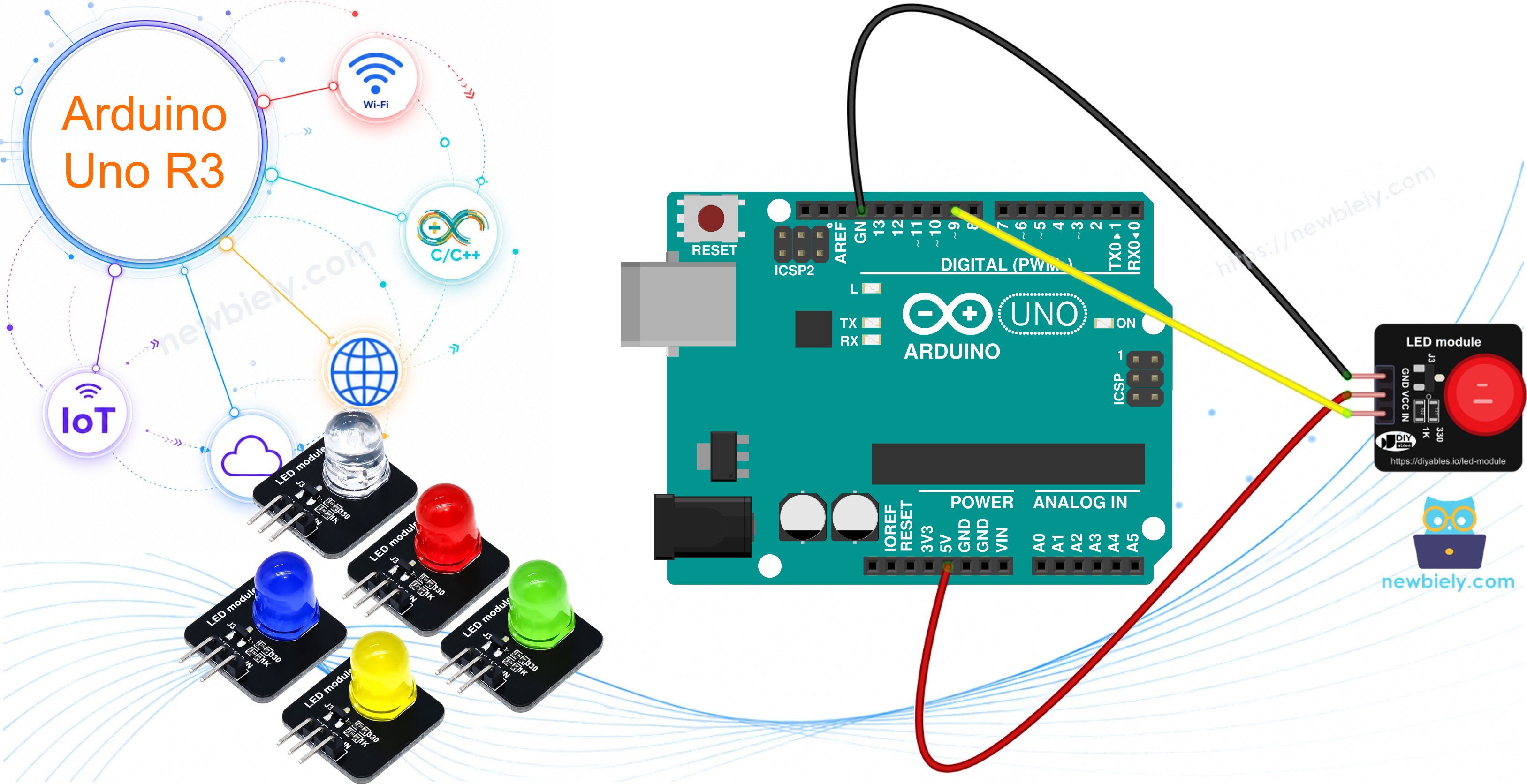
Hardware Required
Or you can buy the following kits:
| 1 | × | DIYables STEM V3 Starter Kit (Arduino included) | |
| 1 | × | DIYables Sensor Kit (18 sensors/displays) |
Additionally, some links direct to products from our own brand, DIYables .
Buy Note: To simplify the wiring process, we recommend using the LED Module, which comes with a built-in resistor.
About LED Module
Think of the LED module as an LED that comes "ready to plug in". The 10mm diffused LED, its 330Ω resistor and a tiny transistor switch are all soldered on a small 20mm x 20mm board. Arduino only tells the transistor when to switch. The LED itself takes its power from the VCC pin, not from the Arduino output pin. This is why the wiring is short and you do not need to pick a resistor value.
The module is sold as a pack of five colors: red, yellow, blue, green and white. All five work the same way and use the same code.
| LED Module | |
|---|---|
| LED | 10mm, diffused, round |
| Colors | red, yellow, blue, green, white |
| Operating Voltage | 3.3V to 5V DC |
| Control Logic | active HIGH (HIGH = ON, LOW = OFF) |
| On-board Parts | 330Ω LED resistor, 1KΩ input resistor, transistor switch |
| Header | 3-pin, 2.54mm, right-angle, presoldered |
| Board Size | 20mm x 20mm |
Pinout
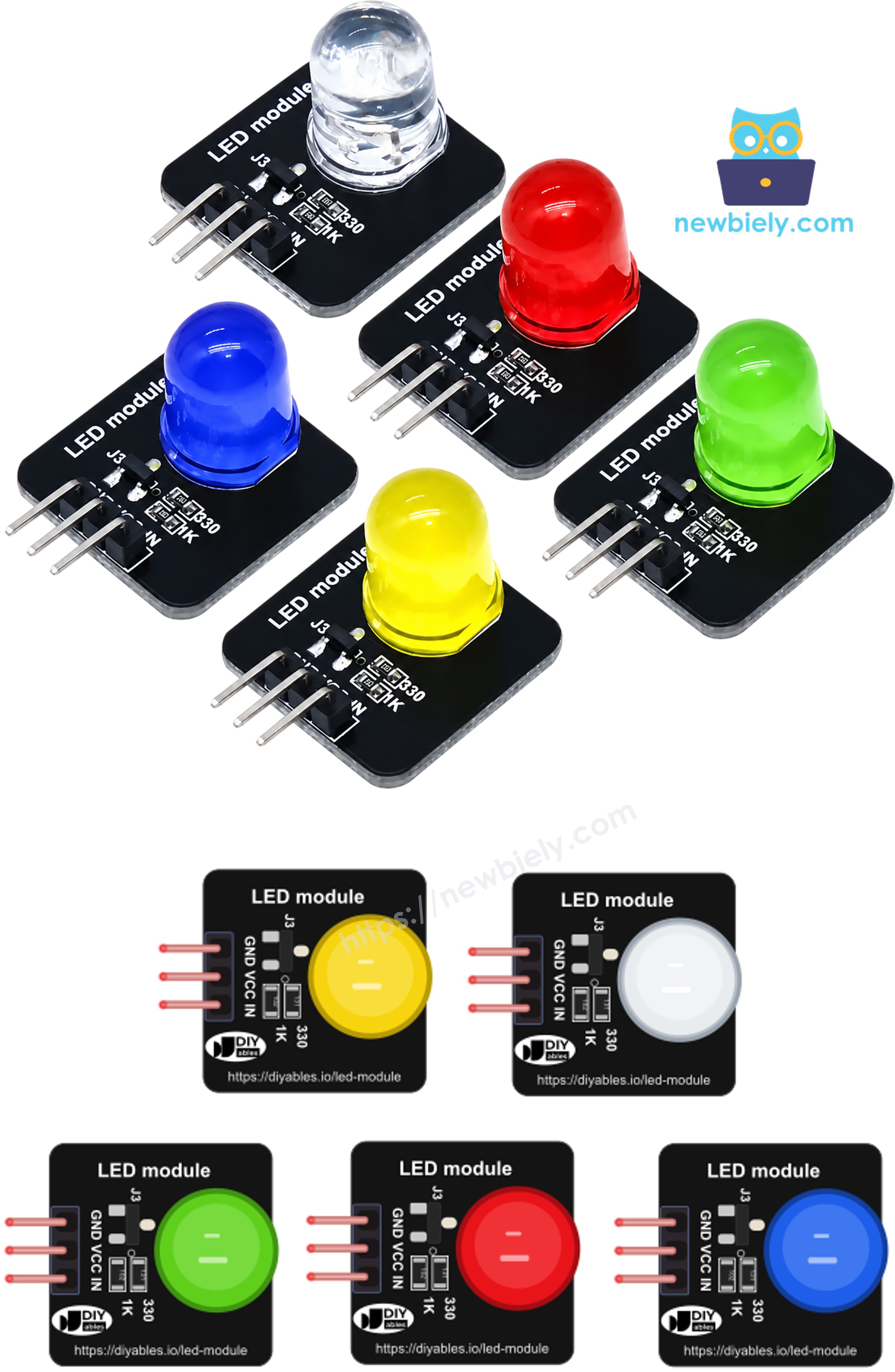
The three header pins are printed on the board in this order: GND, VCC, IN.
- GND pin: needs to be connected to GND (0V)
- VCC pin: needs to be connected to VCC (5V, or 3.3V). The LED current comes from this pin.
- IN pin: needs to be connected to an Arduino output pin. HIGH turns the LED ON, LOW turns it OFF, and a PWM signal sets its brightness.
How is it different from a bare LED, like the one in the Arduino - LED - Blink tutorial?
- A bare LED needs a series resistor (for example 220Ω). The module already has one on board.
- A bare LED has an anode(+) and a cathode(-), and it does not light up if you turn it the wrong way. The module has clear labels, so you just match GND to GND, VCC to 5V and IN to the signal pin.
- With a bare LED, the Arduino pin gives all the LED current. With the module, the pin only drives the transistor, so it gives a very small current.
Wiring Diagram
Connect the module's GND pin to Arduino GND, the VCC pin to the 5V pin, and the IN pin to digital pin 9, as shown in the image below.
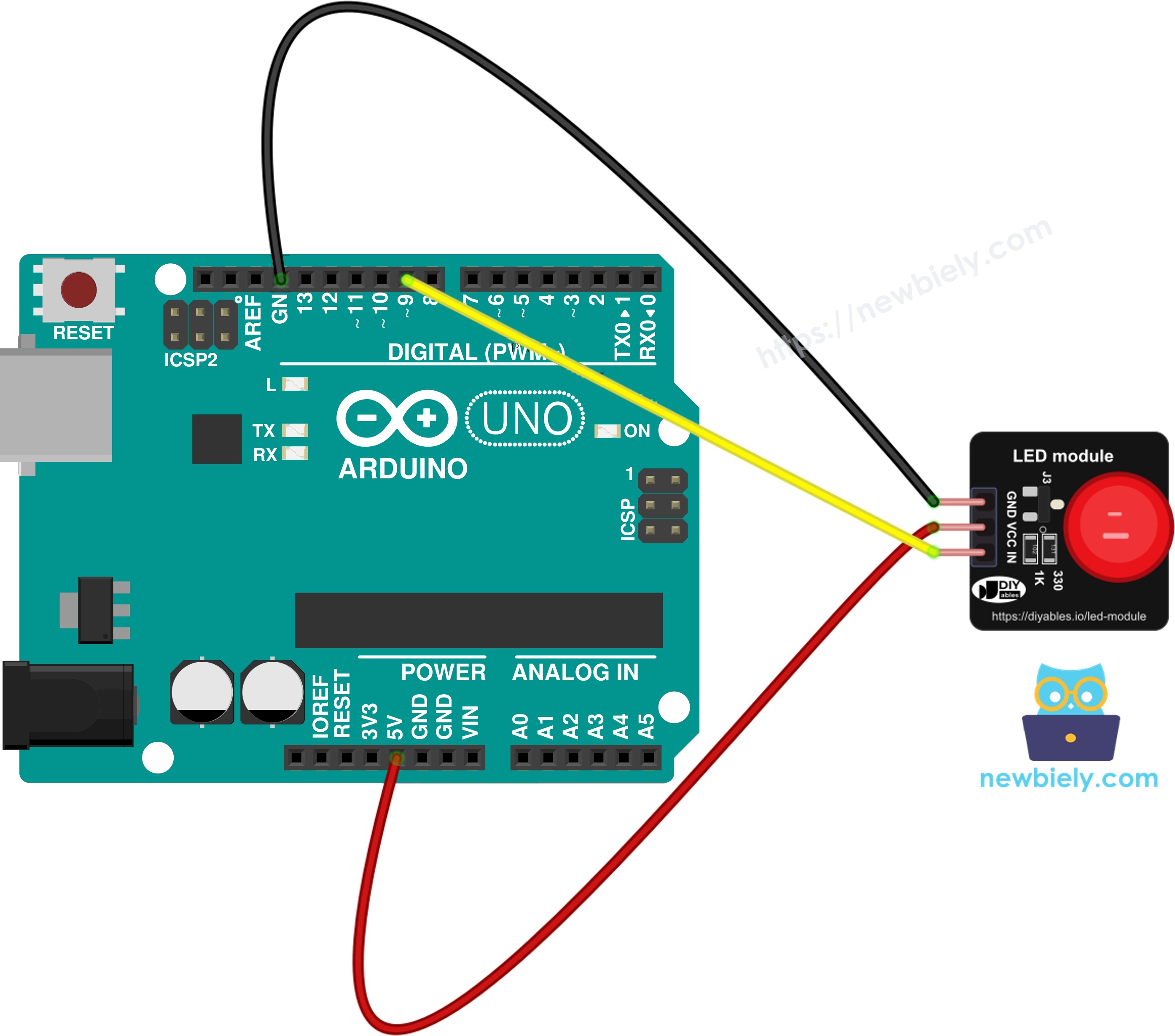
This image is created using Fritzing. Click to enlarge image
Pin 9 is used because it has the "~" mark on the Arduino Uno board, which means it can create PWM. We need PWM for the fade example. If you only want ON/OFF, any digital pin works. Other PWM pins on the Uno are 3, 5, 6, 10 and 11.
How To Program For LED Module
- No library is needed. The code uses only built-in Arduino functions.
- Define the pin that goes to the IN pin of the module:
- Set this pin as an output with pinMode():
- Set the brightness with analogWrite(). The value goes from 0 (OFF) to 255 (full brightness):
Arduino Code - LED Module Blink
This sketch switches the LED module ON for one second and OFF for one second, forever. Each time the state changes, it also prints a line to the Serial Monitor, so you can check the code even if you are not looking at the LED.
Quick Steps
- Connect Arduino to PC via USB cable.
- Wire the LED module to Arduino as shown in the wiring diagram above.
- Open Arduino IDE, select the right board and port.
- Copy the above code and paste it to Arduino IDE.
- Click Upload button on Arduino IDE to upload code to Arduino.
- Look at the LED module: it lights up for one second, then goes dark for one second.
- Open the Serial Monitor (baud rate 9600) and see the result.
Try changing both delay(1000) lines to delay(200) and upload again. The LED now flashes fast, like an alarm light.
Arduino Code - LED Module Fade
This sketch uses PWM to make the LED glow slowly brighter, then slowly dimmer. The brightness value goes up from 0 to 255 in steps of 15, then back down to 0. It works like a "breathing" status light.
Quick Steps
- Keep the same wiring. The IN pin must stay on pin 9 (a PWM pin).
- Copy the above code and paste it to Arduino IDE.
- Click Upload button on Arduino IDE to upload code to Arduino.
- Look at the LED module: it fades in, fades out, rests for half a second, and starts again.
- Open the Serial Monitor (baud rate 9600). The part below shows the top of one cycle, where the fade-in ends and the fade-out begins.
※ NOTE THAT:
If the LED only blinks and does not fade, check that the IN wire is on a pin with the "~" mark. On a pin without PWM, analogWrite() gives only full ON (value 128 or more) or full OFF.
For a fade that does not block other code, see Arduino - LED - Fade. The same code works with the LED module; just keep the module on a PWM pin.
Video Tutorial
We are considering to make the video tutorials. If you think the video tutorials are essential, please subscribe to our YouTube channel to give us motivation for making the videos.