
Arduino - MOSFET Module
In this tutorial, we are going to learn:
- How to connect a MOSFET module (AOD4184, LR7843 or FR120N) to Arduino
- How to connect a 12V load, such as an LED strip or a fan, to the MOSFET module
- How to program Arduino to turn the load ON/OFF and control its power with PWM
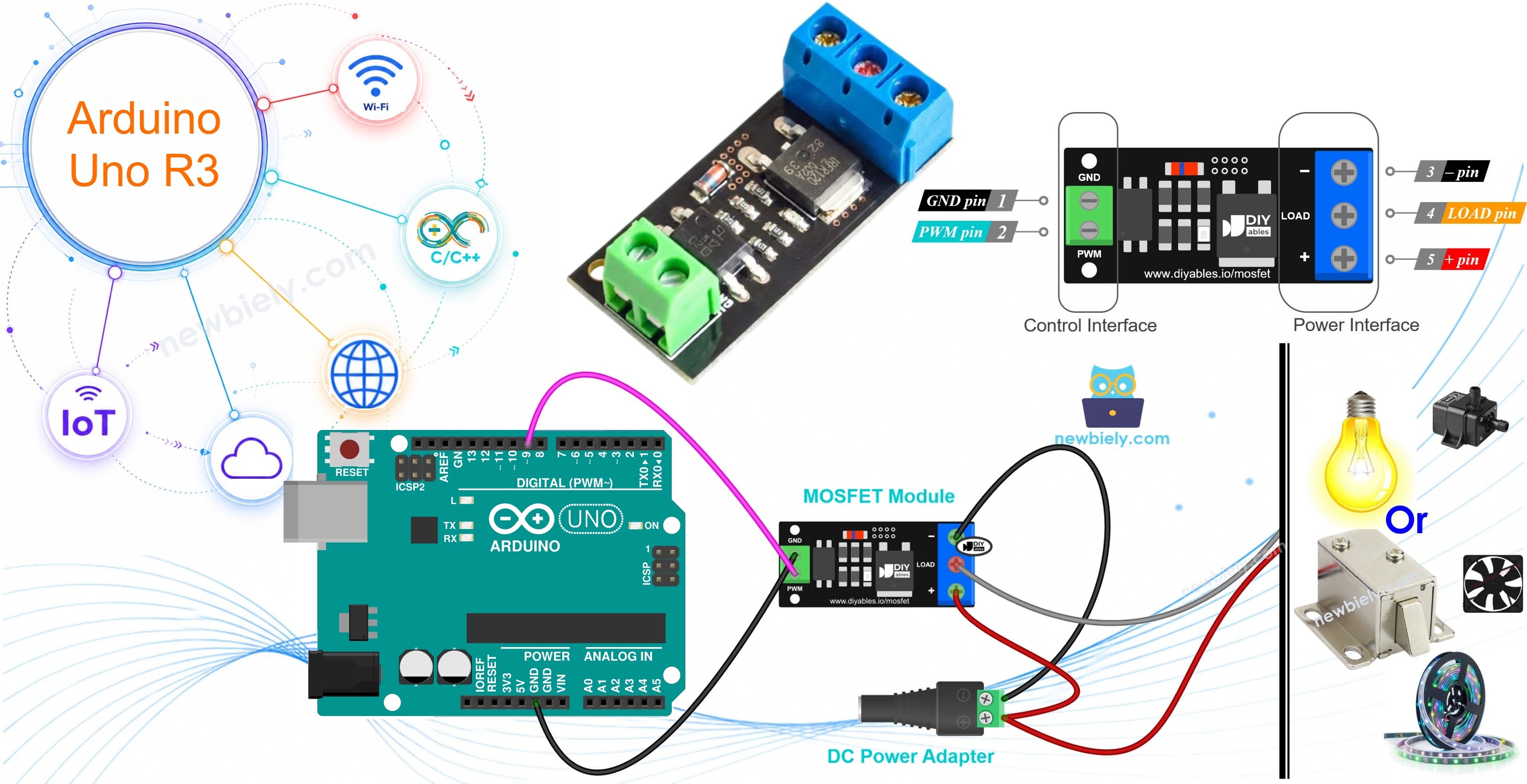
Hardware Required
Or you can buy the following kits:
| 1 | × | DIYables STEM V3 Starter Kit (Arduino included) | |
| 1 | × | DIYables Sensor Kit (18 sensors/displays) |
Additionally, some links direct to products from our own brand, DIYables .
About MOSFET Module
An Arduino pin gives only 5V and a very small current. It cannot power a 12V LED strip, a DC motor, a fan, a pump, a solenoid valve or a heater. The MOSFET module sits between Arduino and the load. Arduino sends a small signal, and the module switches the big power of the load.
The AOD4184 (also sold as D4184), LR7843 and FR120N modules use the same board design. They have the same size, the same pins, the same wiring and the same code. Only the MOSFET chip is different.
| AOD4184 | LR7843 | FR120N | |
|---|---|---|---|
| MOSFET | AOD4184A (N-channel) | IRLR7843 (N-channel) | IRFR120N (N-channel) |
| Max Load Voltage (MOSFET rating) | 40V DC | 30V DC | 100V DC |
| Max Current (MOSFET rating) | 50A | 161A | 9.4A |
| On-resistance RDS(on) | about 7 mΩ | about 3.3 mΩ | about 210 mΩ |
| Practical Current without Heatsink | about 10–15A | about 15A | about 2A |
| Control Signal | 3.3V / 5V logic, active HIGH | 3.3V / 5V logic, active HIGH | 3.3V / 5V logic, active HIGH |
| Isolation | PC817 optocoupler | PC817 optocoupler | PC817 optocoupler |
| PWM | yes, keep ≤ ~1 kHz | yes, keep ≤ ~1 kHz | yes, keep ≤ ~1 kHz |
| Load Type | DC only | DC only | DC only |
Which one should you pick?
- LR7843: it has the lowest resistance, so it stays coolest at high current. It is good for 12V/24V loads with big current, like high-power LED strips or big motors. Its limit is 30V.
- AOD4184: a good all-rounder. It works up to 40V with strong current. It is good for 12V/24V/36V loads.
- FR120N: it handles the highest voltage (up to 100V), but its resistance is high. So it only fits small currents (about 2A without heatsink). It is good for small 24V/48V loads.
The 50A and 161A numbers are the limits of the chip, not of the small board. The real limit is heat. Touch the MOSFET after a few minutes. If it is too hot, add a heatsink or lower the current.
Pinout
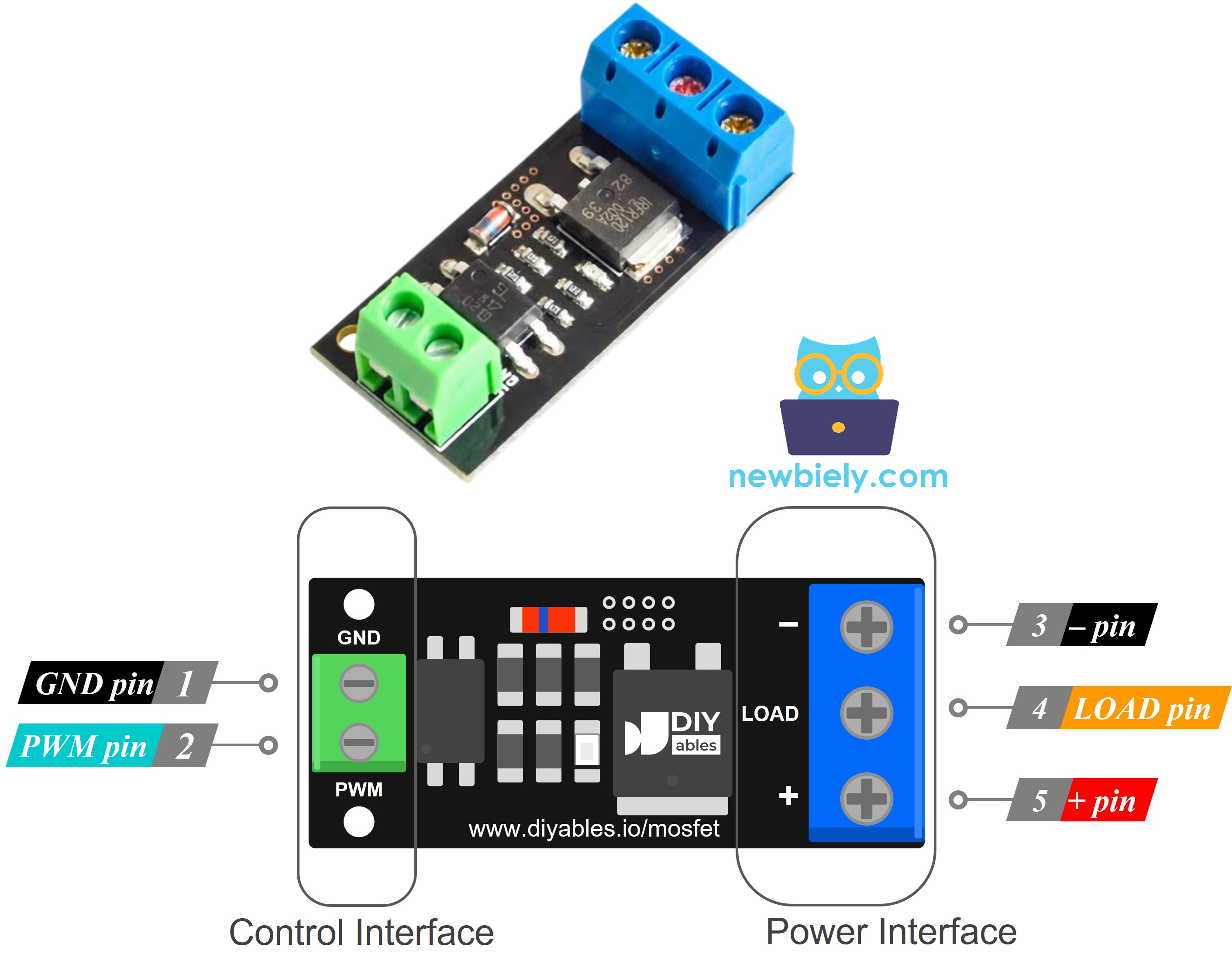
The module has two groups of pins. The control side is a 2-pin header (2.54mm), so it fits a breadboard. The power side uses three screw terminals.
- Control side:
- PWM pin: needs to be connected to an Arduino output pin. This pin receives the control signal.
- GND pin: needs to be connected to GND of Arduino (signal ground).
- Power side:
- + pin: needs to be connected to the positive (+) of the load power supply, for example 12V, and to the positive wire of the load. Both wires share this one terminal.
- LOAD pin: needs to be connected to the negative wire of the load. This is the side that the MOSFET switches.
- − pin: needs to be connected to the negative (−) of the load power supply.
- The signal goes this way: Arduino pin → PWM pin → small resistor → LED inside the PC817 optocoupler → light → phototransistor inside the PC817 → MOSFET gate.
- Because the signal travels as light, the Arduino side and the load side are isolated. The signal GND and the load GND are NOT connected on the module.
- The MOSFET is an N-channel, low-side switch. It sits between the LOAD terminal and the − terminal, so it switches the negative wire of the load.
- A resistor on the gate pulls it down to 0V when the optocoupler is off.
- No current flows into the optocoupler, so its LED stays dark.
- The phototransistor stays off. The gate resistor keeps the MOSFET gate at 0V.
- The MOSFET is OFF. Between LOAD and −, it is like an open switch.
- The − wire of the load is not connected to ground, so no current flows. The load gets 0V.
- Code: digitalWrite(MOSFET_PIN, LOW); or analogWrite(MOSFET_PIN, 0);
- A few mA flow into the optocoupler. Its LED lights up inside the chip (you cannot see it). The Arduino pin can easily give this small current.
- The phototransistor turns on. Now the MOSFET gate gets about half of the load supply, about 6V with a 12V adapter.
- The MOSFET turns fully ON. It is like a closed switch with a very low resistance: a few mΩ for the AOD4184 and LR7843, about 0.2Ω for the FR120N.
- The current path is: adapter + → + terminal → load → LOAD terminal → MOSFET → − terminal → adapter −.
- The load gets almost the full 12V and runs at full power.
- Code: digitalWrite(MOSFET_PIN, HIGH); or analogWrite(MOSFET_PIN, 255);
- With analogWrite(), the pin switches between LOW and HIGH about 500 to 1000 times per second.
- The MOSFET follows the pin: ON in each HIGH part, OFF in each LOW part. So the load gets fast 12V pulses.
- The duty cycle is the part of the time the pin is HIGH. The average voltage and power are the duty cycle times the full value. The value 0–255 sets the duty cycle (duty = value / 255).
- An LED strip looks dimmer. It still flickers, but too fast for your eyes to see.
- A fan or motor runs slower. Its spinning mass smooths the pulses.
- Keep the PWM frequency low, about 500 Hz to 1 kHz, because the PC817 is slow. If the frequency is too high, the MOSFET cannot switch fully. Then the pulses are not clean and the MOSFET gets hot. The Arduino Uno analogWrite() default (about 490 Hz, or about 1 kHz on pins 5 and 6) is fine.
- The code in this tutorial uses PWM from 10% to 100% to fade the load.
- The load power supply must be at least about 6V, because the gate gets only half of it (see the HIGH case above). So the module does NOT work well with a 5V load supply. Use 9V or more if the load draws more than a few amps.
- Use DC loads only. Never connect AC mains to this module. For AC loads, see the Arduino - Relay tutorial.
- There is NO flyback diode on the board. For motors, pumps, solenoids and relays, add an external flyback diode (for example 1N5819 or 1N4007) across the load: cathode (stripe side) to load +, anode to load −.
The labels may be a bit different between batches. Always read the text printed on your board.
How It Works
The module is active HIGH. Let's see what happens for each kind of signal on the PWM pin.
Arduino Pin LOW (0V): the Load Is OFF
Arduino Pin HIGH (5V): the Load Is ON
PWM Signal: the Load Gets Part of the Power
| Duty cycle | analogWrite() value | Load is ON | Average voltage (12V supply) |
|---|---|---|---|
| 0% | 0 | never | 0V |
| 25% | 64 | 1/4 of the time | about 3V |
| 50% | 128 | half of the time | about 6V |
| 75% | 191 | 3/4 of the time | about 9V |
| 100% | 255 | all the time | 12V |
Some important rules:
Compared with a relay, the MOSFET module makes no clicking sound, has no moving parts, switches very fast, has a long life and supports PWM. A relay cannot do PWM.
Wiring Diagram
Connect pin 9 of Arduino to the PWM pin, Arduino GND to the GND pin, the 12V adapter (through the DC power jack) to + and −, and the LED strip to + and LOAD, as shown in the image below.
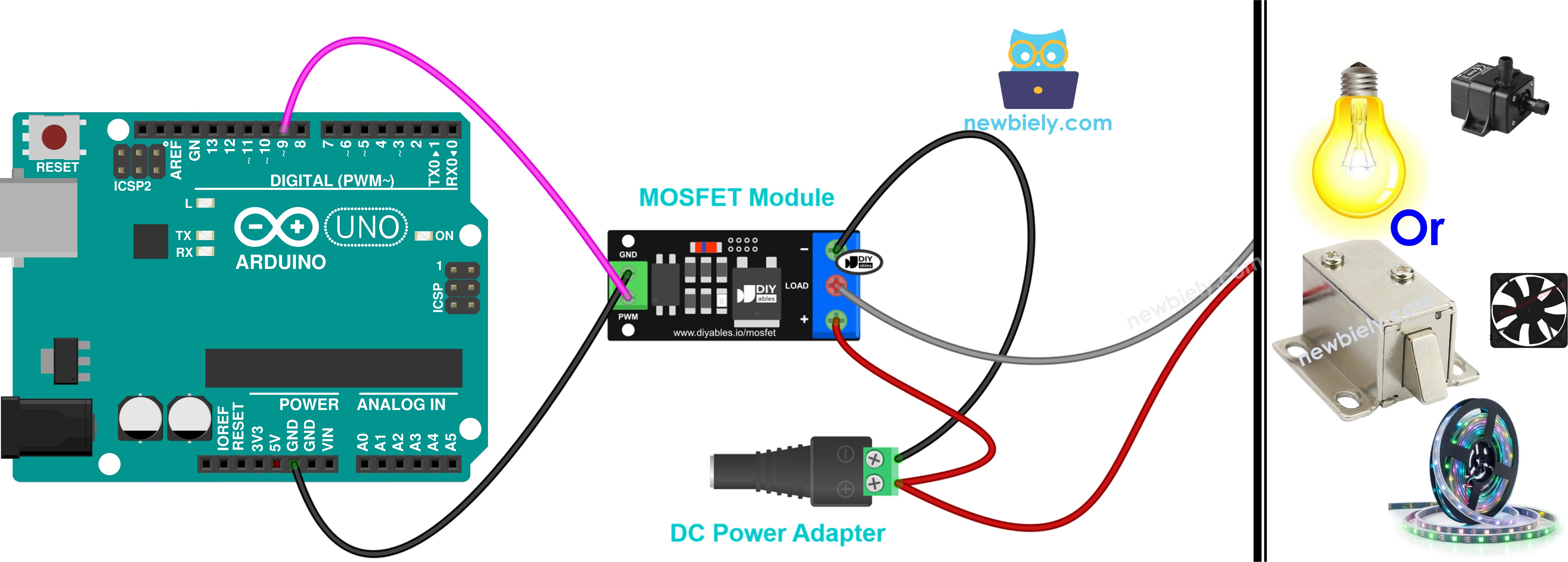
This image is created using Fritzing. Click to enlarge image
Never connect the 12V to any pin of Arduino.
More Devices You Can Connect
The LED strip is only one choice. You can swap it for a fan, a pump, a motor or a solenoid. The two wires on the Arduino side do not change. On the power side, the rule is always the same:
- Power adapter + → +
- Power adapter − → −
- Device + → + (the same terminal as the adapter +)
- Device − → LOAD
Quick checks before you start:
- Use an adapter with the same voltage as the device (12V device → 12V adapter). Never go below 6V.
- Look at the current of the device. The FR120N fits small devices only (about 2A, no heatsink). For more current, take the AOD4184 or the LR7843.
- A device with a coil (motor, fan, pump, solenoid) needs a flyback diode, 1N5819 or 1N4007. Put it across the device: stripe side to device +, other side to device −. Below, this is marked as "Diode: yes".
You do not need new code for these devices. The same code works for all of them. For a solenoid, just use HIGH and LOW (100% and 0%) and skip the fade.
Arduino MOSFET Module - 12V LED Strip
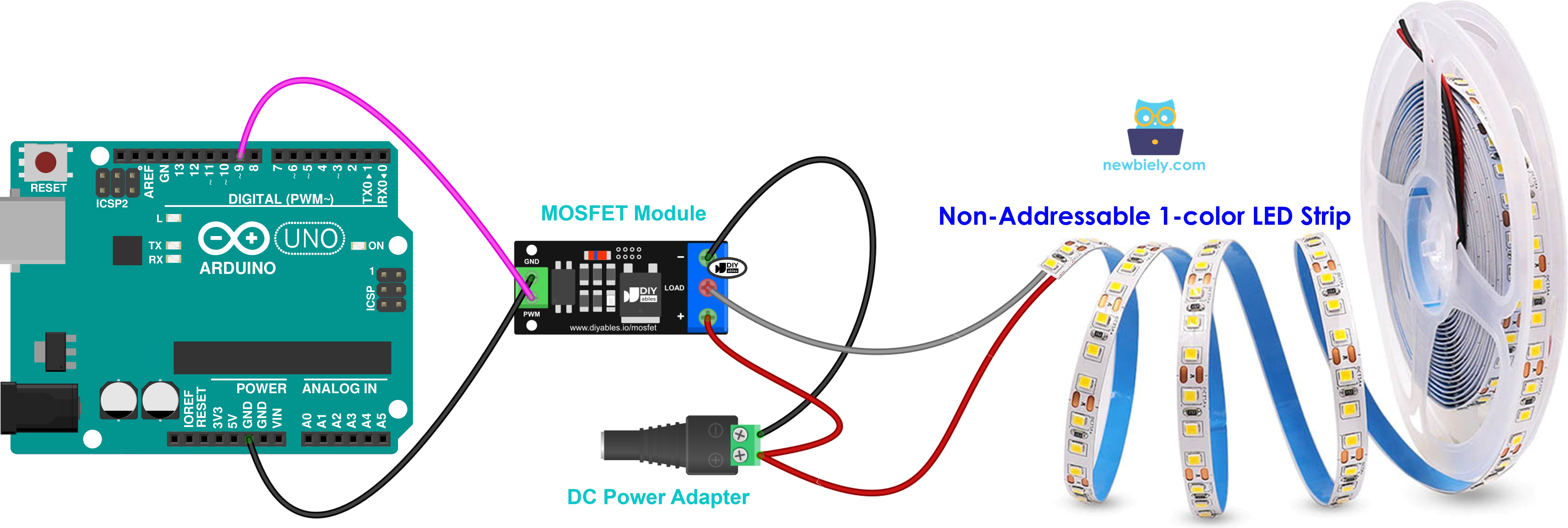
This image is created using Fritzing. Click to enlarge image
- Strip + (often printed "12V") → +, strip − → LOAD
- Diode: no. An LED strip has no coil.
- PWM sets the brightness.
- Single-color strips only. A long strip needs more current, so check its current first.
Arduino MOSFET Module - 12V Cooling Fan
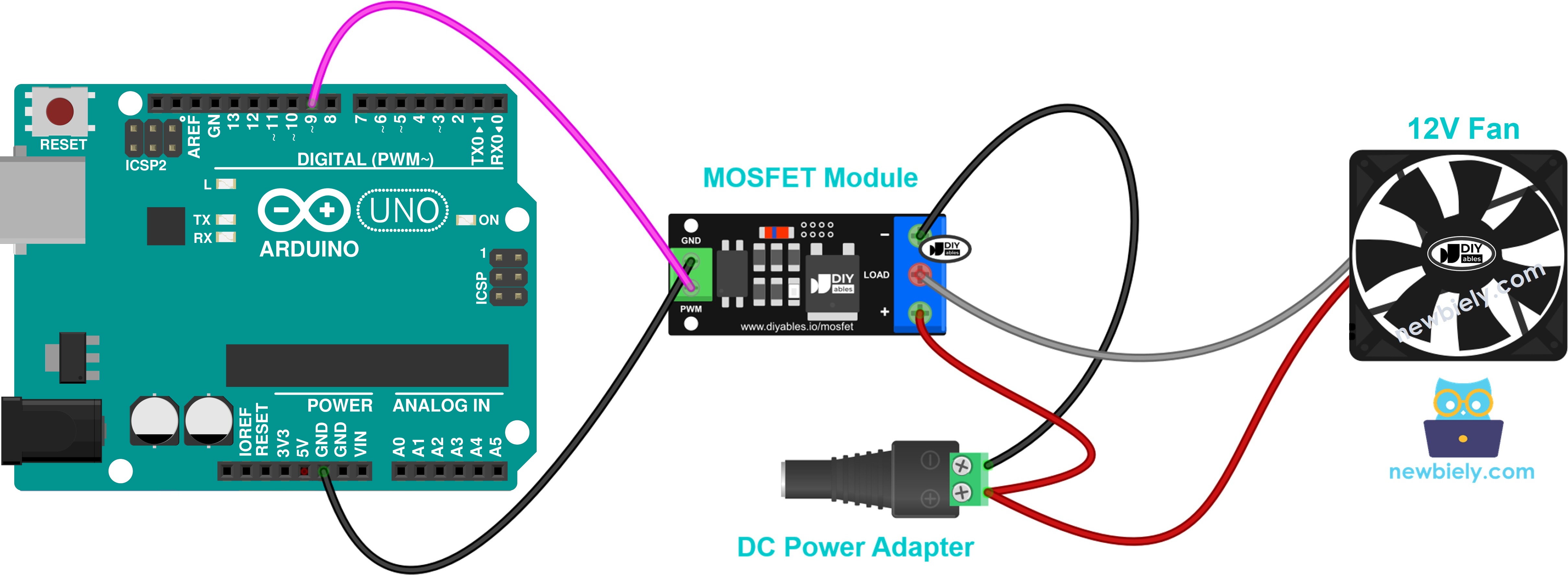
This image is created using Fritzing. Click to enlarge image
- Red wire → +, black wire → LOAD
- A third wire (yellow) is the speed signal. Leave it free.
- Diode: yes. It costs very little and does no harm.
- PWM sets the speed. Use more than about 30%, or the fan may not start.
Arduino MOSFET Module - 12V Water Pump
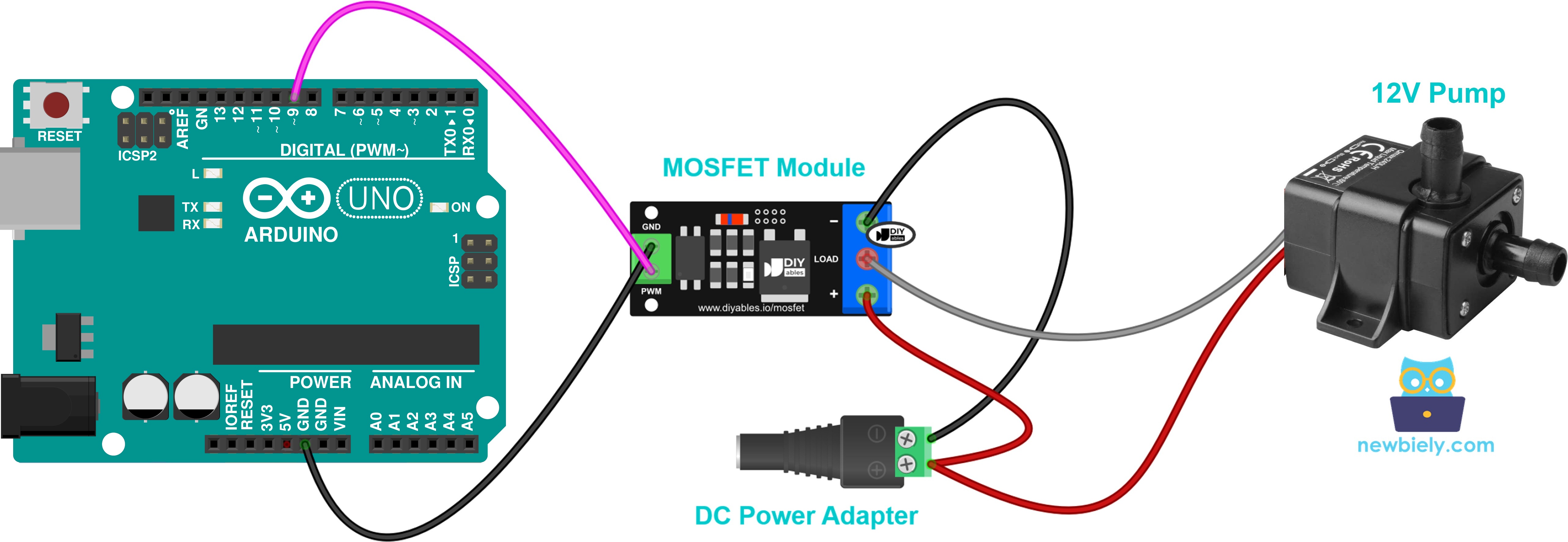
This image is created using Fritzing. Click to enlarge image
- Pump + → +, pump − → LOAD
- Diode: yes
- PWM sets the water flow.
- Do not run the pump without water.
Arduino MOSFET Module - 12V DC Motor
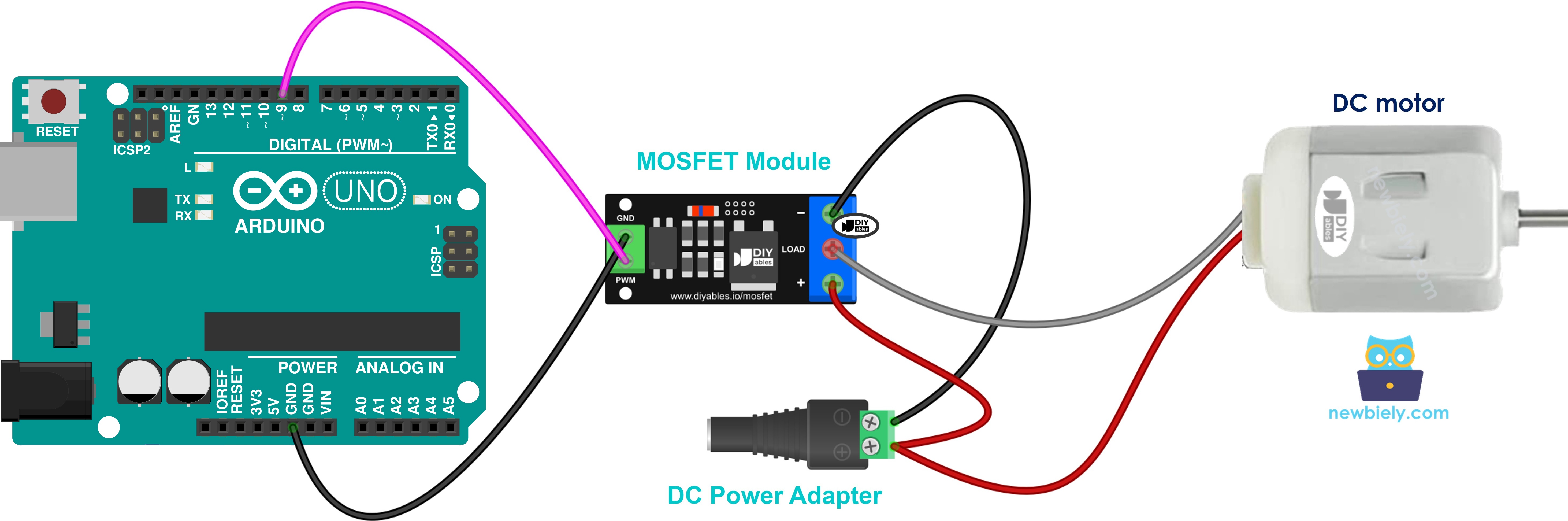
This image is created using Fritzing. Click to enlarge image
- Motor + → +, motor − → LOAD
- Diode: yes
- PWM sets the speed.
- The motor spins one way only. To change the direction, you need a motor driver like the L298N. See Arduino - DC Motor.
Arduino MOSFET Module - 12V Solenoid Valve
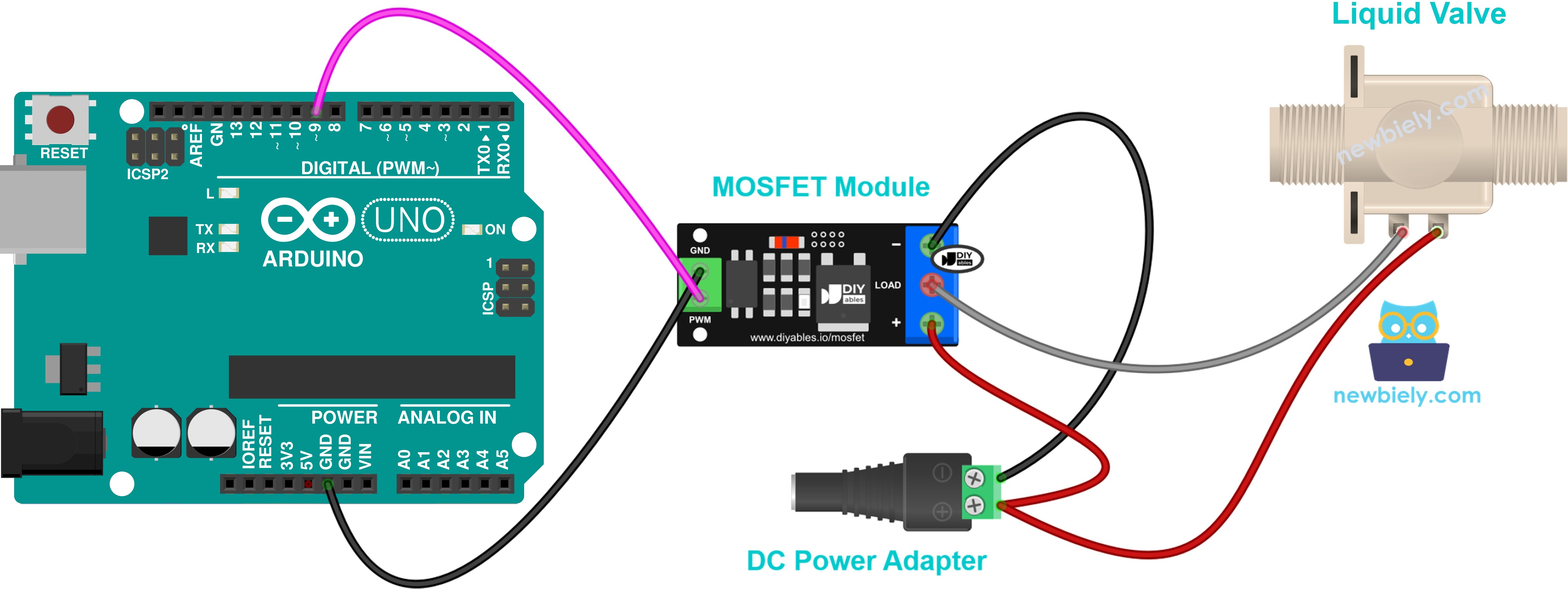
This image is created using Fritzing. Click to enlarge image
- Valve + → +, valve − → LOAD
- Diode: yes
- Normally closed valve: ON opens it, OFF closes it.
- ON/OFF only. No PWM.
Arduino MOSFET Module - 12V Solenoid Lock
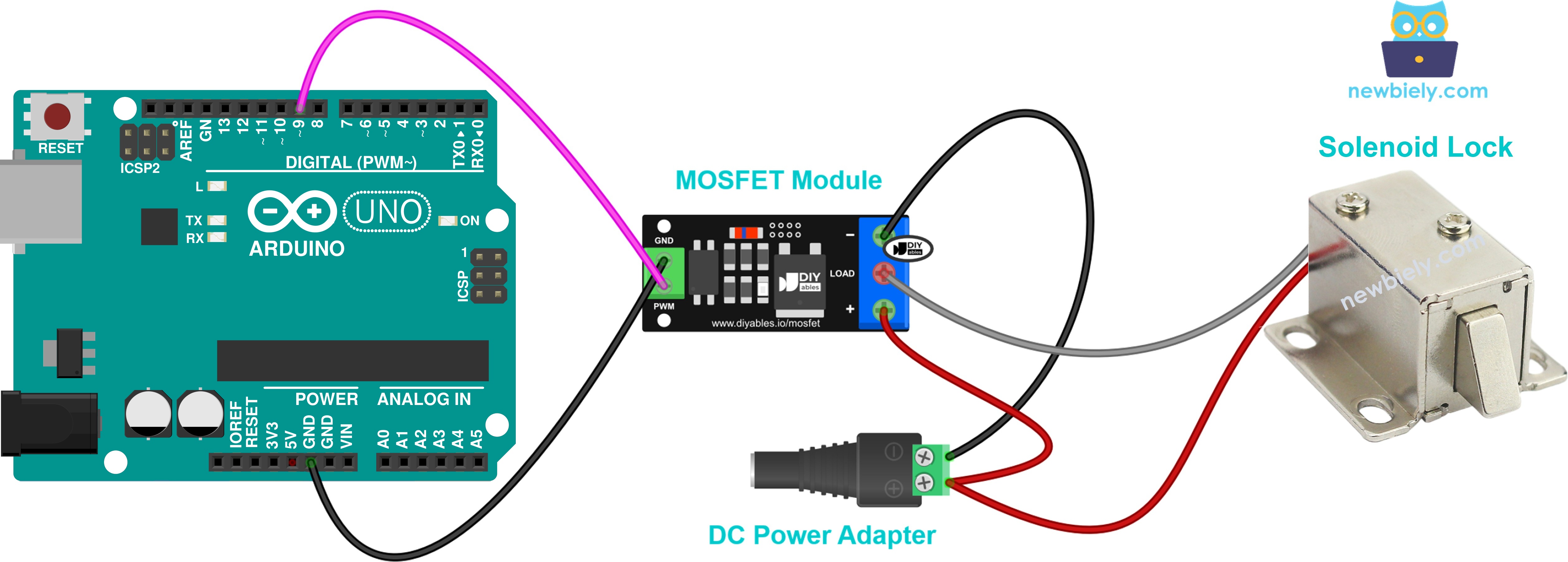
This image is created using Fritzing. Click to enlarge image
- Lock + → +, lock − → LOAD
- Diode: yes
- Full ON or full OFF only. No PWM.
- Give it a short ON pulse to unlock. If it stays ON for a long time, it gets hot. See also Arduino - Solenoid Lock.
How To Program For MOSFET Module
- No library needed: the code uses only built-in functions.
- Define the pin: const int MOSFET_PIN = 9; (pin 9 supports PWM, it has the ~ mark)
- Set the pin as output: pinMode(MOSFET_PIN, OUTPUT);
- Turn the load fully ON: digitalWrite(MOSFET_PIN, HIGH); or analogWrite(MOSFET_PIN, 255);
- Turn the load fully OFF: digitalWrite(MOSFET_PIN, LOW); or analogWrite(MOSFET_PIN, 0);
- Set the load power with analogWrite(). The value goes from 0 (OFF) to 255 (full power). For example, about 50%: analogWrite(MOSFET_PIN, 128);
- Convert a percent (0–100%) to a PWM value (0–255): int duty = map(percent, 0, 100, 0, 255);
If you only need ON/OFF, digitalWrite() is enough. If you want to dim or change speed, use analogWrite(). It works the same way as in the Arduino - LED - Fade tutorial, but now it controls a 12V load.
Arduino Code - MOSFET Module
The code below does these things again and again:
- Turns the load fully ON for 2 seconds, then OFF for 2 seconds
- Increases the power from 10% to 100%, in 10% steps, every 0.5 second
- Decreases the power from 90% to 0%, then waits 1 second
Quick Steps
- Do the wiring as shown in the diagram above.
- Connect Arduino to PC via USB cable.
- Plug the 12V power adapter into the DC power jack.
- Open Arduino IDE. Navigate to the Tools menu, select the right board and port.
- Copy the above code and paste it to Arduino IDE.
- Click Upload button on Arduino IDE to upload code to Arduino.
- Look at the LED strip: it is at full brightness for 2 seconds, then OFF for 2 seconds, then it slowly gets brighter, and then slowly gets dimmer.
- Open the Serial Monitor (baud rate 9600) and see the result.
If you use a 12V fan instead of the LED strip, the fan runs at full speed, stops, then speeds up and slows down. Do not forget the flyback diode for a fan or a motor.
Video Tutorial
We are considering to make the video tutorials. If you think the video tutorials are essential, please subscribe to our YouTube channel to give us motivation for making the videos.